PluginCams guides
PluginCams Documentation
Installation, cam services, shortcodes and advanced features—divided into focused sections so you can find the exact setup you need.
Documentation structure
Choose a tab below, then jump directly to a specific topic.
Getting Started
PluginCams is a powerful WordPress plugin that allows you to integrate live adult cams from multiple platforms directly into your website. This documentation will guide you through installation, configuration, and advanced usage.
Before You Begin
- Ensure you have WordPress 5.0 or higher installed
- You'll need affiliate accounts with the cam platforms you want to use
- Basic familiarity with WordPress administration is recommended
- For custom implementations, some HTML/CSS knowledge may be helpful
- We recommend using some Adult Friendly VPS or dedicated server host.
- Optional: We recommend using Redis on your server with the Redis Object Cache free plugin.
- External PluginCams guide by BlogAdulti.
Installation
Standard Installation
- Download the PluginCams zip file from your purchase confirmation email or account dashboard
- Log in to your WordPress admin panel
- Navigate to Plugins → Add New
- Click "Upload Plugin" and select the PluginCams zip file
- Click "Install Now" and then "Activate Plugin"
Manual Installation (FTP)
- Unzip the PluginCams package on your computer
- Connect to your WordPress installation via FTP
- Navigate to the /wp-content/plugins/ directory
- Upload the entire PluginCams folder
- Log in to your WordPress admin panel and navigate to Plugins
- Locate "PluginCams" in the list and click "Activate"
After Installation
Once activated, you'll see a new "PluginCams" menu item in your WordPress admin sidebar. Before using the plugin, you'll need to configure your API connections.
Configuration
Initial Setup
- Navigate to PluginCams → Settings in your WordPress admin
- Activate the plugin with your license code provided by us when you purchased the plugin.
- Now you see the "Webcams Settings" tab
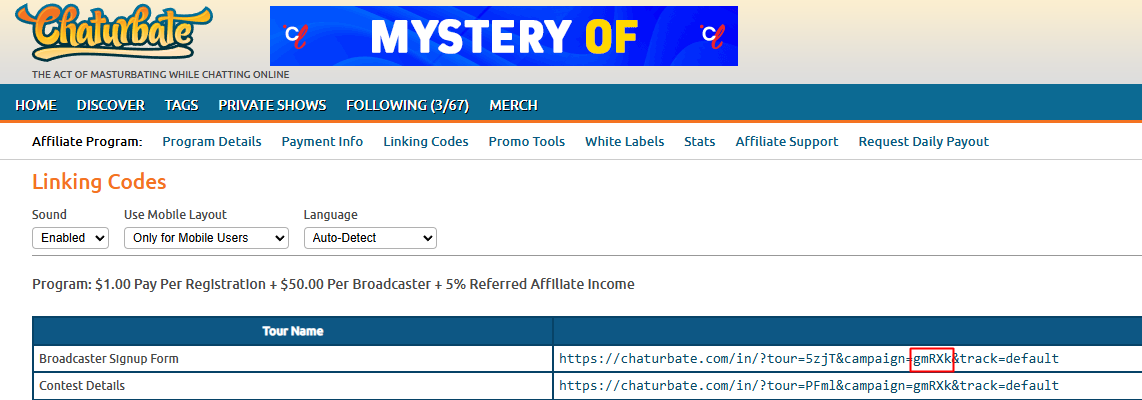
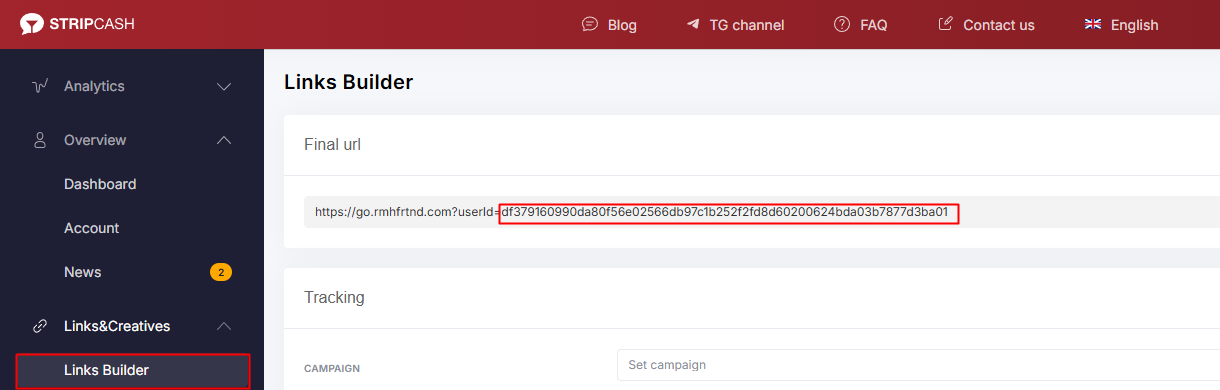
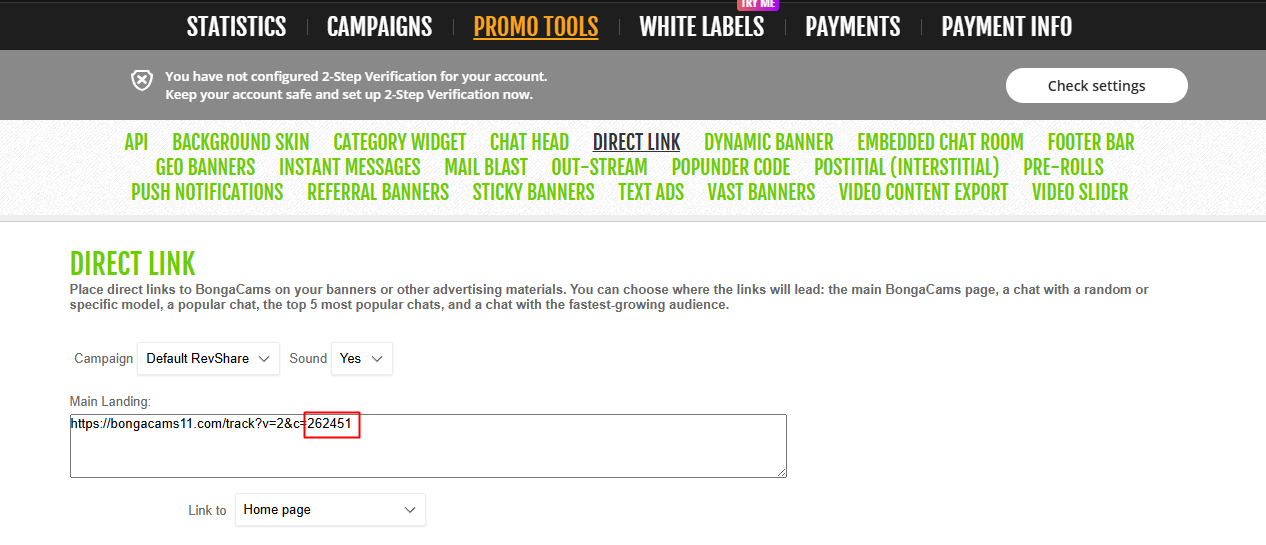
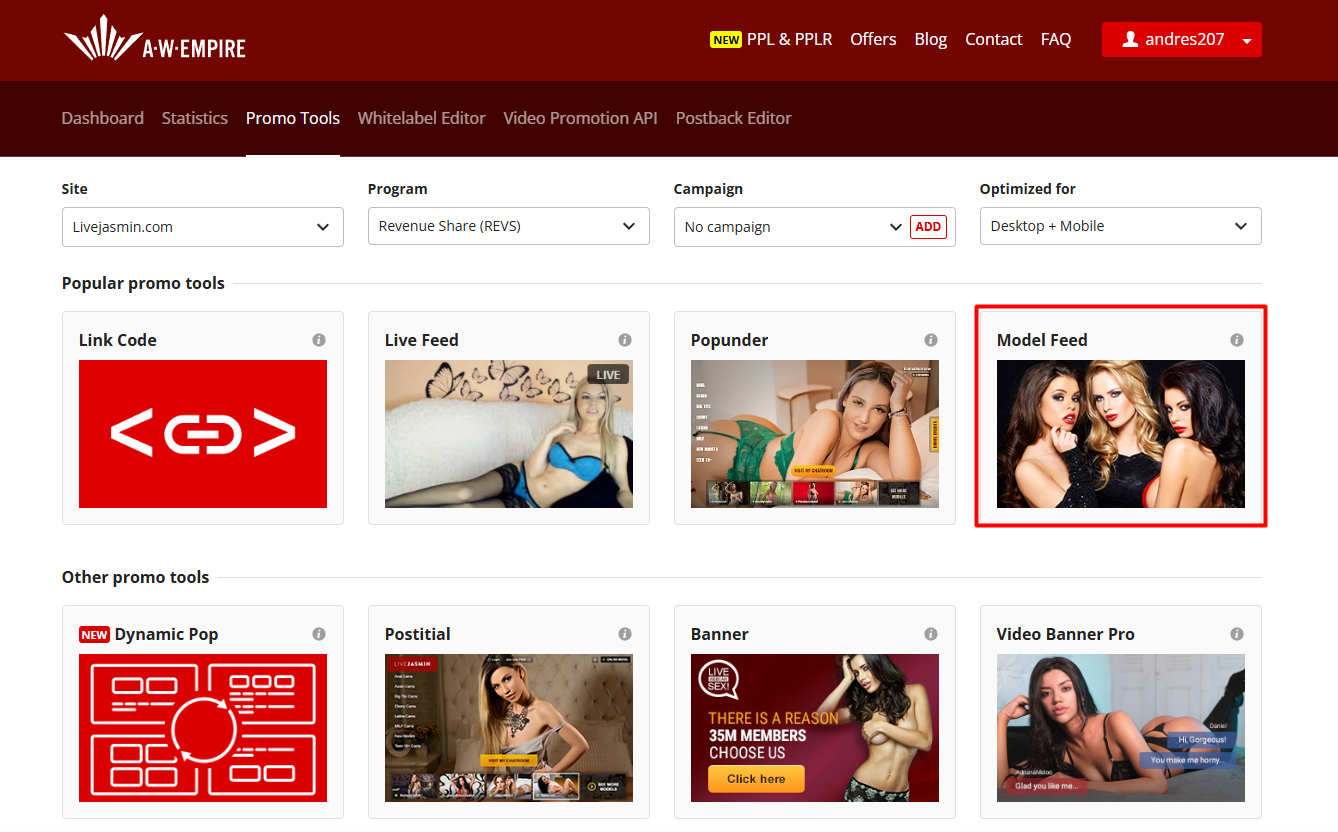
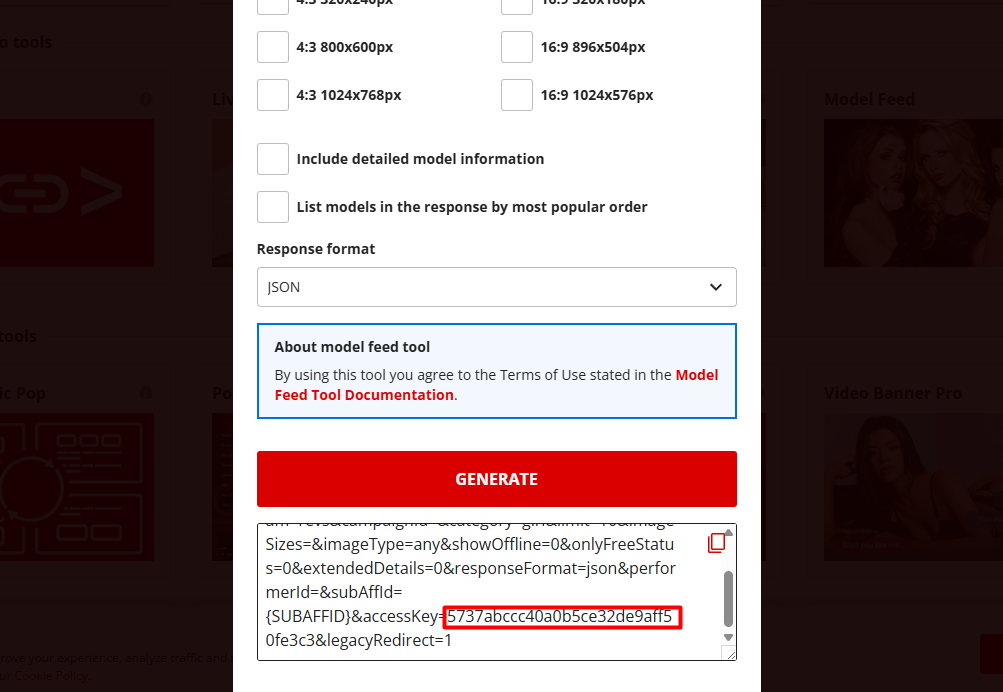
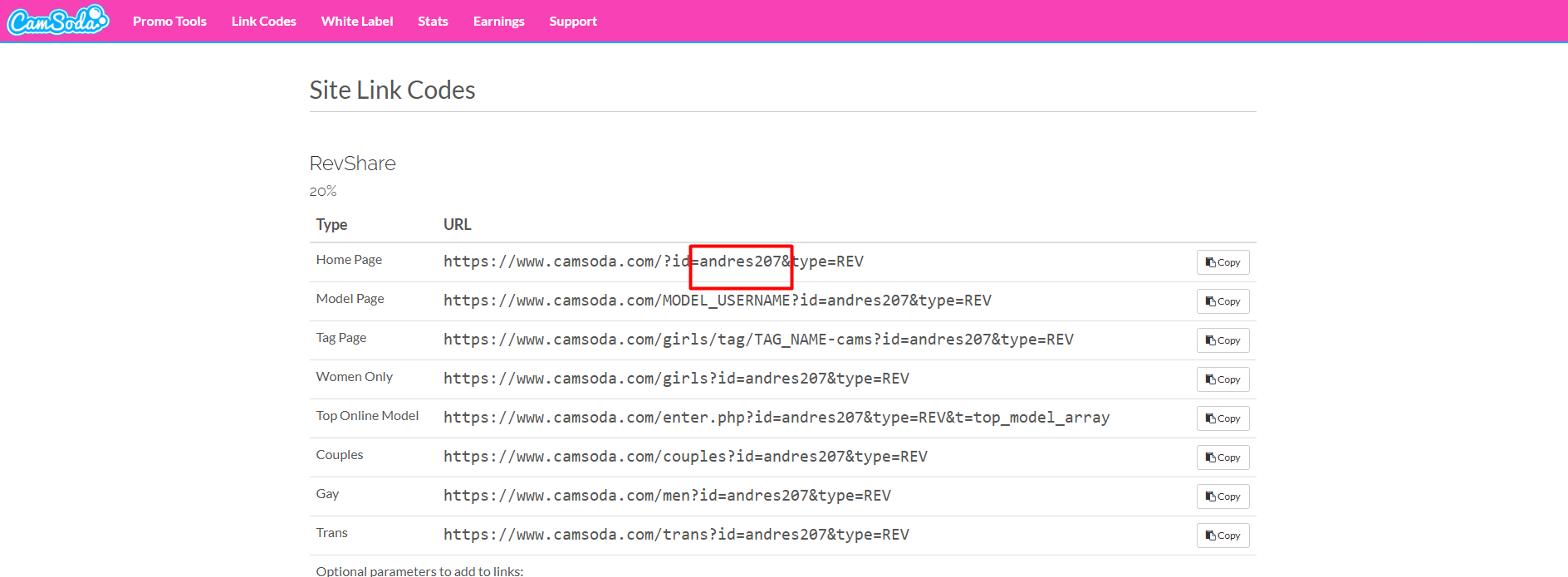
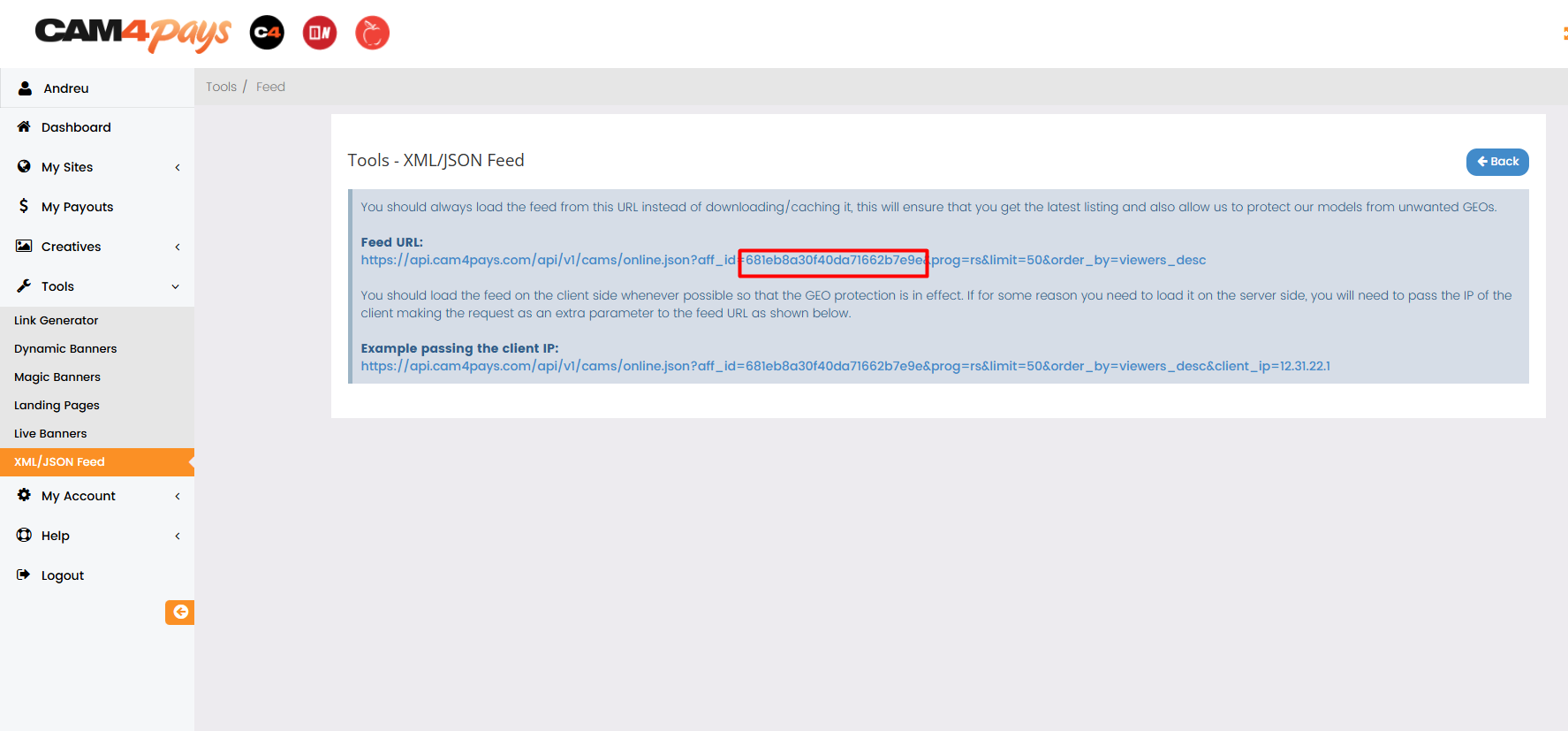
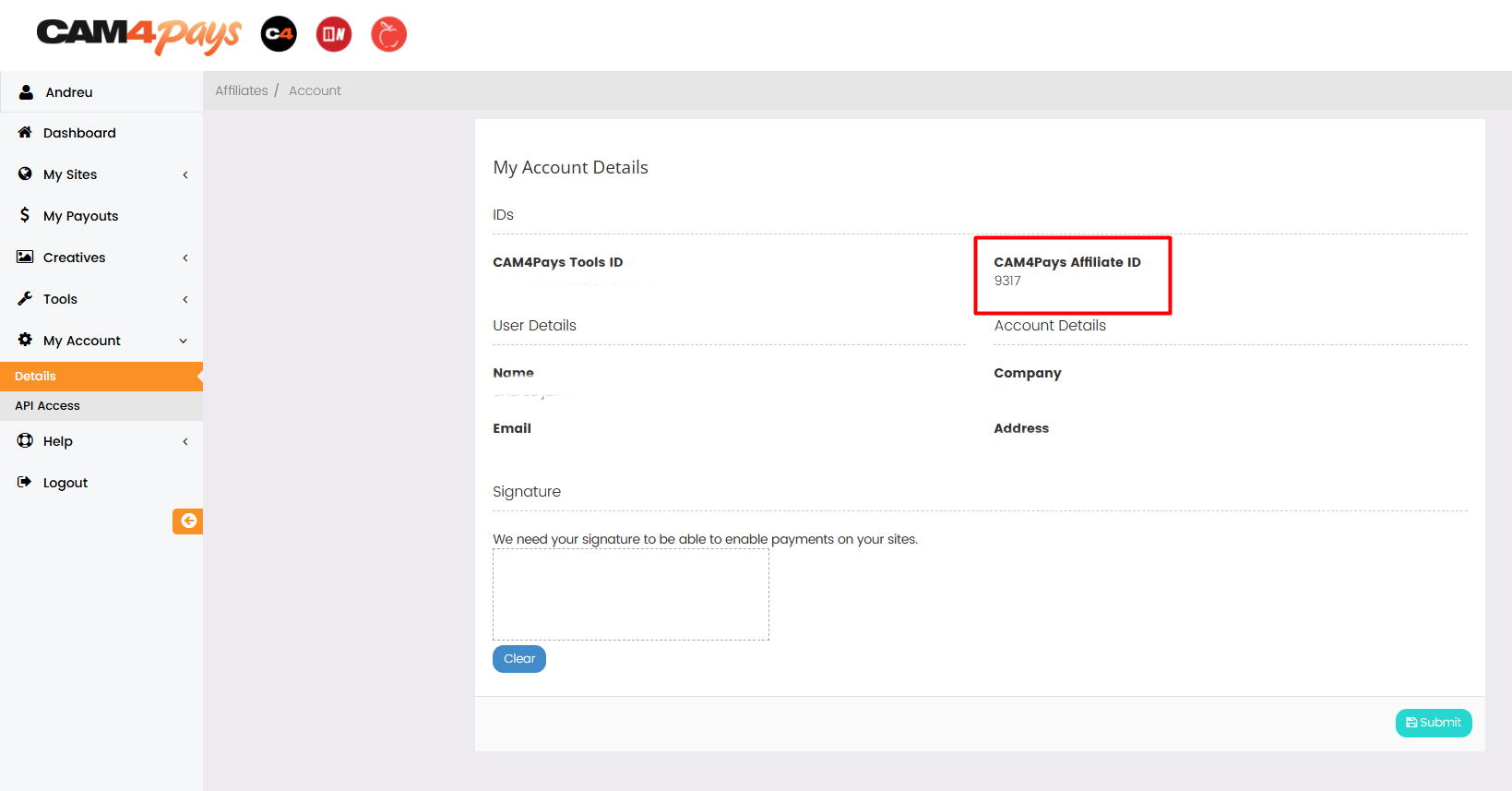
- For each platform you want to use (Chaturbate, Stripchat, BongaCams), you'll need to:
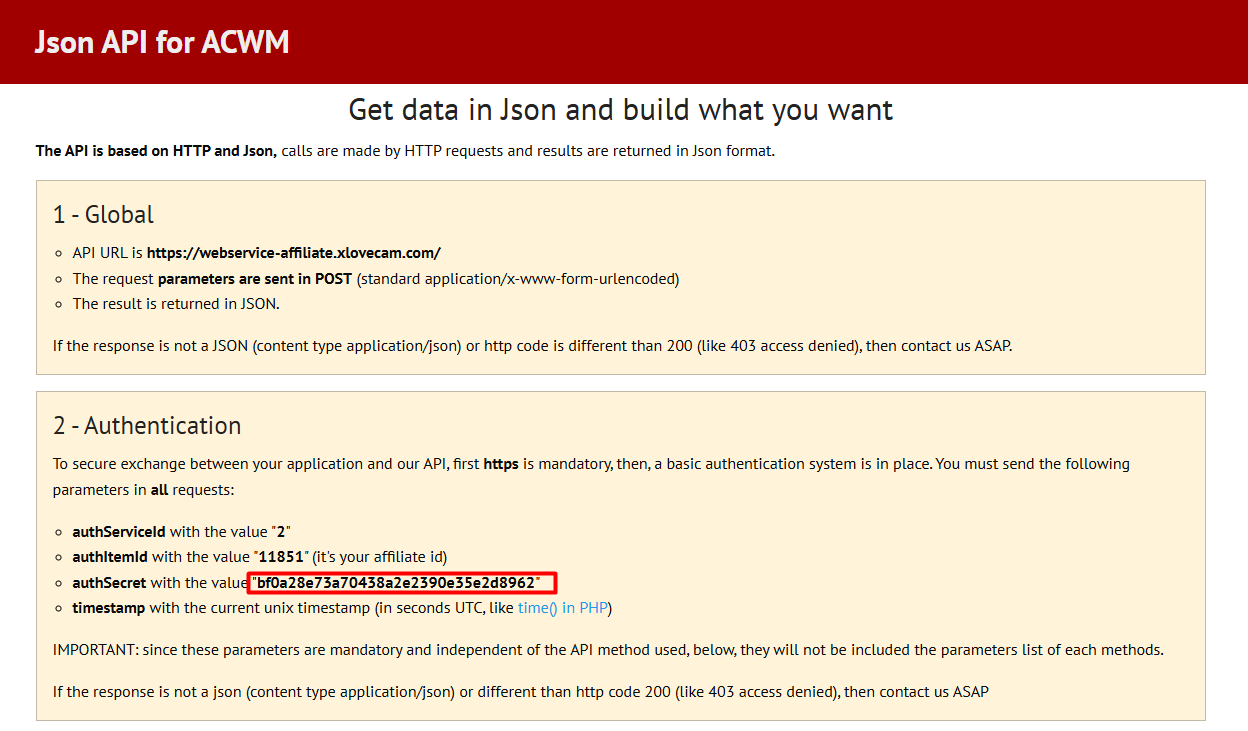
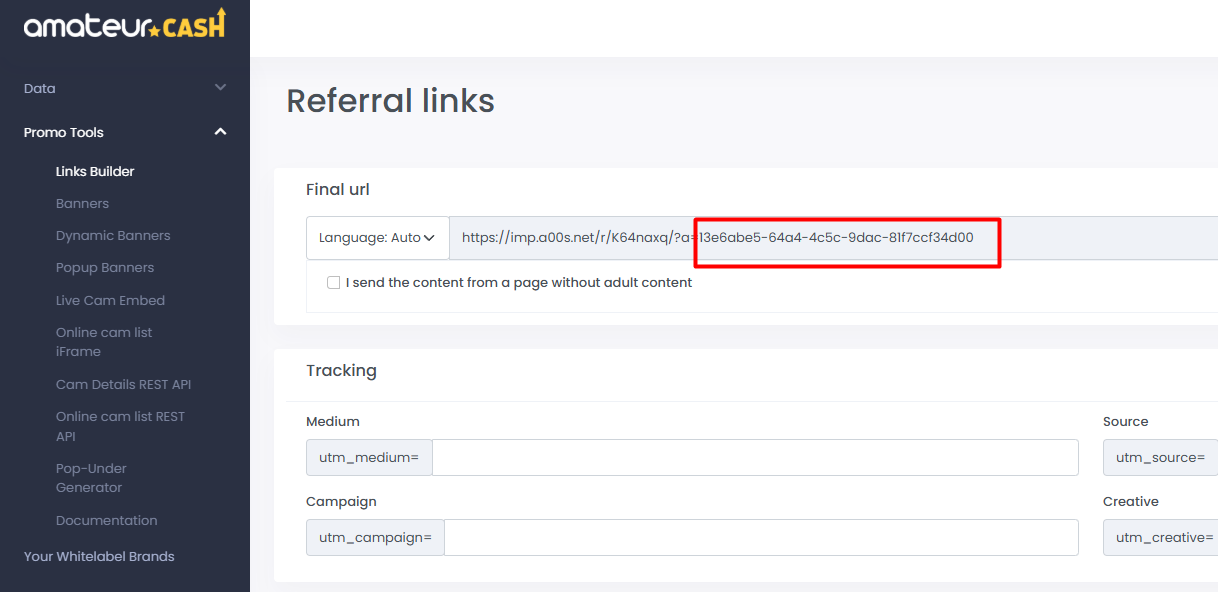
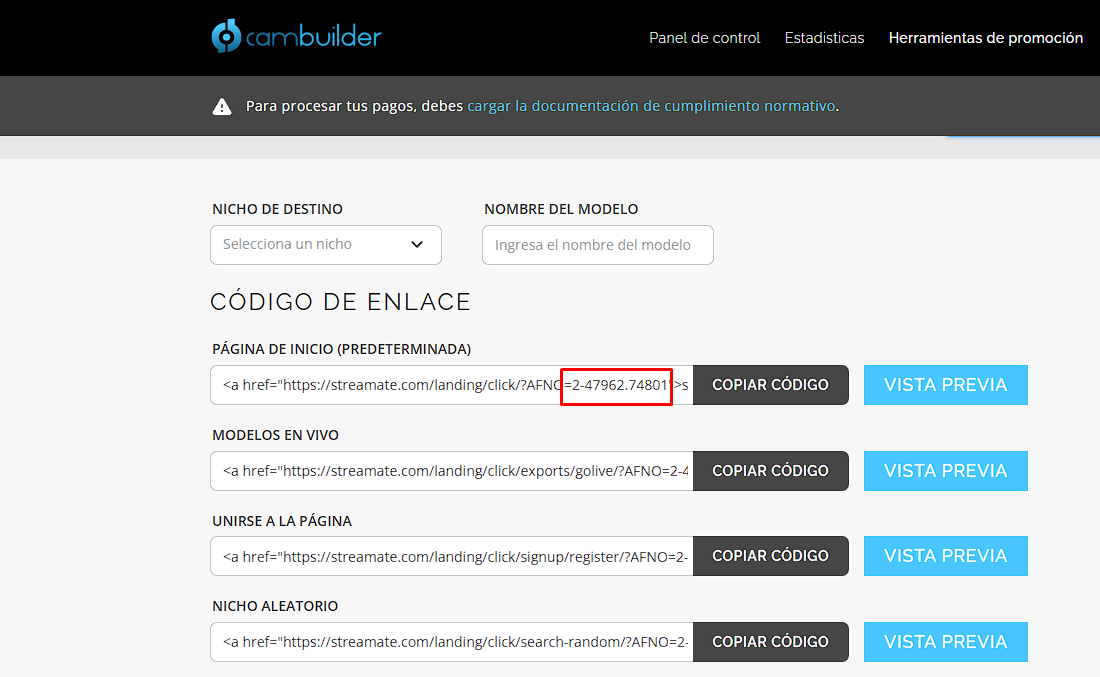
- Obtain your affiliate API key or affiliate user from the platform (details below).
- Enter the API key or the affiliate code/user id in the corresponding field.
- Configure any additional platform-specific settings.
- Enable Auto Import and wait or trigger a manual import.
- For manual import to work, you must have Auto Import enabled. Manual import only triggers the cron job instantly.
- Save your settings
General Settings
| Setting | Description | Default |
|---|---|---|
| Models Limit | How many models are imported if each query is available to the API. | 100 |
| Enable Auto Import | To work automatically via cron. | Deactivated |
| Cron Time | How long to API requests (in minutes) | 15 |
| Options for other themes | For the plugin to work with other WordPress themes. | Deactivated |

Still stuck?
Need help with your PluginCams setup?
Send your PluginCams version, WordPress/PHP versions and the exact error or issue you're seeing.
Open support page →